Windchill Connectivity APIs
Creo Parametric has the capability to be directly connected to Windchill solutions, including WindchillProjectLink and PDMLink servers. This access allows users to manage and control the product data seamlessly from within Creo Parametric.
This section lists Web.Link APIs that support Windchill servers and server operations in a connected Creo Parametric session.
Introduction
The methods introduced in this section provide support for the basic Windchill server operations from within Creo Parametric. With these methods, operations such as registering a Windchill server, managing workspaces, and check in or check out of objects will be possible via Web.Link. The capabilities of these APIs are similar to the operations available from within the Creo Parametric client, with some restrictions.
Some of these APIs are supported from a non-interactive, that is, batch mode application or asynchronous application.
Accessing a Windchill Server from a Creo Parametric Session
Creo Parametric allows you to register Windchill servers as a connection between the Windchill database and Creo Parametric. Although the represented Windchill database can be from WindchillProjectLink or Windchill PDMLink all types of databases are represented in the same way.
You can use the following identifiers when referring to Windchill servers in Web.Link:
•  Codebase URL—This is the root portion of the URL that is used to connect to a Windchill server. For example http://wcserver.company.com/Windchill.
•  Server Alias—A server alias is used to refer to the server after it has been registered. The alias is also used to construct paths to files in the server workspaces and commonspaces. The server alias is chosen by the user or application and it need not have any direct relationship to the codebase URL. An alias can be any normal name, such as my_alias.
Accessing Information Before Registering a Server
To start working with a Windchill server, you must establish a connection by registering the server in Creo Parametric. The methods described in this section allow you to connect to a Windchill server and access information related to the server.
Methods and Properties Introduced:
  • pfcBaseSession.AuthenticateBrowser()
  • pfcBaseSession.GetServerLocation()
  • pfcServerLocation.Class
  • pfcServerLocation.Location
  • pfcServerLocation.Version
  • pfcServerLocation.ListContexts()
  • pfcServerLocation.CollectWorkspaces()
  • Use the method pfcBaseSession.AuthenticateBrowser() to set the authentication context using a valid username and password. A successful call to this method allows the Creo Parametric session to register with any server that accepts the username and password combination. A successful call to this method also ensures that an authentication dialog box does not appear during the registration process. You can call this method any number of times to set the authentication context for any number of Windchill servers, provided that you register the appropriate servers or servers immediately after setting the context.
    The property pfcServerLocation.Location specifies a pfcServer.ServerLocation object representing the codebase URL for a possible server. The server may not have been registered yet, but you can use this object and the methods it contains to gather information about the server prior to registration.
    The property pfcServerLocation.Class specifies the class of the server or server location. The values are:
    •  Windchill—Denotes a Windchill PDMLink server.
    •  ProjectLink—Denotes Windchill ProjectLink type of servers.
    The property pfcServerLocation.Version specifies the version of Windchill that is configured on the server or server location, for example, 9.0 or 10.0. This method accepts the server codebase URL as the input.
    Note
    pfcServerLocation.Version works only for Windchill servers and throws the pfcExceptions.XToolkitUnsupported exception, if the server is not a Windchill server.
    The method pfcServerLocation.ListContexts() gives a list of all the available contexts for a specified server. A context is used to associate a workspace with a product, project, or library.
    The method pfcServerLocation.CollectWorkspaces() returns the list of available workspaces for the specified server. The workspace objects returned contain the name of each workspace and its context.
    Registering and Activating a Server
    From Creo Parametric 2.0 onward, the Web.Link methods call the same underlying API as Creo Parametric to register and unregister servers. Hence, registering the servers using Web.Link methods is similar to registering the servers using the Creo Parametric user interface. Therefore, the servers registered by Web.Link are available in the Creo Parametric Server Registry. The servers are also available in other locations in the Creo Parametric user interface such as, the Folder Navigator and the embedded browser.
    Methods Introduced:
  • pfcBaseSession.RegisterServer()
  • pfcServer.Activate()
  • pfcServer.Unregister()
  • The method pfcBaseSession.RegisterServer() registers the specified server with the codebase URL. You can automate the registration of servers in interactive mode. To preregister the servers use the standard config.fld setup. If you do not want the servers to be preregistered in batch mode, set the environment variable PTC_WF_ROOT to an empty directory before starting Creo Parametric.
    A successful call to pfcBaseSession.AuthenticateBrowser() with a valid username and password is essential for pfcBaseSession.RegisterServer() to register the server without launching the authentication dialog box. Registration of the server establishes the server alias. You must designate an existing workspace to use when registering the server. After the server has been registered, you may create a new workspace.
    The method pfcServer.Activate()sets the specified server as the active server in the Creo Parametric session.
    The method pfcServer.Unregister() unregisters the specified server. This is similar to Server Registry  Delete through the user interface.
    Accessing Information From a Registered Server
    Properties Introduced:
  • pfcServer.IsActive
  • pfcServer.Alias
  • pfcServer.Context
  • The property pfcServer.IsActive specifies if the server is active.
    The property pfcServer.Alias returns the alias of a server if you specify the codebase URL.
    The property pfcServer.Context returns the active context of the active server.
    Information on Servers in Session
    Methods Introduced:
  • pfcBaseSession.GetActiveServer()
  • pfcBaseSession.GetServerByAlias()
  • pfcBaseSession.GetServerByUrl()
  • pfcBaseSession.ListServers()
  • The method pfcBaseSession.GetActiveServer() returns returns the active server handle.
    The method pfcBaseSession.GetServerByAlias() returns the handle to the server matching the given server alias, if it exists in session.
    The method pfcBaseSession.GetServerByUrl() returns the handle to the server matching the given server URL and workspace name, if it exists in session.
    The method pfcBaseSession.ListServers() returns a list of servers registered in this session.
    Accessing Workspaces
    For every workspace, a new distinct storage location is maintained in the user’s personal folder on the server (server-side workspace) and on the client (client-side workspace cache). Together, the server-side workspace and the client-side workspace cache make up the workspace.
    Methods and Properties Introduced:
  • pfcWorkspaceDefinition.Create()
  • pfcWorkspaceDefinition.WorkspaceName
  • pfcWorkspaceDefinition.WorkspaceContext
  • The class pfcWorkspaceDefinition contains the name and context of the workspace. The method pfcServerLocation.CollectWorkspaces() returns an array of workspace data. Workspace data is also required for the method pfcServer.CreateWorkspace() to create a workspace with a given name and a specific context.
    The method pfcWorkspaceDefinition.Create() creates a new workspace definition object suitable for use when creating a new workspace on the server.
    The property pfcWorkspaceDefinition.WorkspaceName retrieves the name of the workspace.
    The property pfcWorkspaceDefinition.WorkspaceContext retrieves the context of the workspace.
    Creating and Modifying the Workspace
    Methods and Properties Introduced:
  • pfcServer.CreateWorkspace()
  • pfcServer.ActiveWorkspace
  • pfcServerLocation.DeleteWorkspace()
  • The method pfcServer.CreateWorkspace() creates and activates a new workspace.
    The property pfcServer.ActiveWorkspace retrieves the name of the active workspace.
    The method pfcServerLocation.DeleteWorkspace() deletes the specified workspace. The method deletes the workspace only if the following conditions are met:
    •  The workspace is not the active workspace.
    •  The workspace does not contain any checked out objects.
    Use one of the following techniques to delete an active workspace:
    •  Make the required workspace inactive using pfcServer.ActiveWorkspace with the name of some other workspace and then call pfcServerLocation.DeleteWorkspace().
    •  Unregister the server using pfcServer.Unregister() and delete the workspace.
    Workflow to Register a Server
    To Register a Server with an Existing Workspace
    Perform the following steps to register a Windchill server with an existing workspace:
    1. Set the appropriate authentication context using the method pfcBaseSession.AuthenticateBrowser() with a valid username and password.
    2. Look up the list of workspaces using the method pfcServerLocation.CollectWorkspaces(). If you already know the name of the workspace on the server, then ignore this step.
    3. Register the workspace using the method pfcBaseSession.RegisterServer() with an existing workspace name on the server.
    4. Activate the server using the method pfcServer.Activate().
    To Register a Server with a New Workspace
    Perform the following steps to register a Windchill server with a new workspace:
    1. Perform steps 1 to 4 in the preceding section to register the Windchill server with an existing workspace.
    2. Use the method pfcServerLocation.ListContexts() to choose the required context for the server.
    3. Create a new workspace with the required context using the method pfcServer.CreateWorkspace(). This method automatically makes the created workspace active.
    Note
    You can create a workspace only after the server is registered.
    Aliased URL
    An aliased URL serves as a handle to the server objects. You can access the server objects in the commonspace (shared folders) and the workspace using an aliased URL. An aliased URL is a unique identifier for the server object and its format is as follows:
    •  Object in workspace has a prefix wtws
    wtws://<server_alias>/<workspace_name>/<object_server_name>
    where <object_server_name> includes <object_name>.<object_extension>
    For example,
    wtws://my_server/my_workspace/abcd.prt,
    wtws://my_server/my_workspace/intf_file.igs
    where
    <server_alias> is my_server
    <workspace_name> is my_workspace
    •  Object in commonspace has a prefix wtpub
    wtpub://<server_alias>/<folder_location>/<object_server_name>
    For example,
    wtpub://my_server/path/to/cs_folder/abcd.prt
    where
    <server_alias> is my_server
    <folder_location> is path/to/cs_folder
    Note
      object_server_name must be in lowercase.
      The APIs are case-sensitive to the aliased URL.
      <object_extension> should not contain Creo Parametric versions, for example, .1 or .2, and so on.
    Server Operations
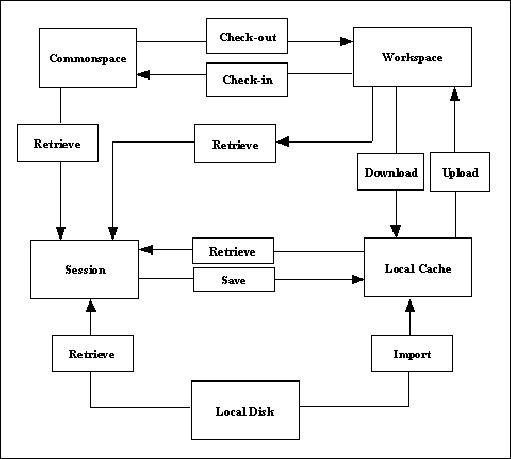
    After registering the Windchill server with Creo Parametric, you can start accessing the data on the Windchill servers. The Creo Parametric interaction with Windchill servers leverages the following locations:
    •  Commonspace (Shared folders)
    •  Workspace (Server-side workspace)
    •  Workspace local cache (Client-side workspace)
    •  Creo Parametric session
    •  Local disk
    The methods described in this section enable you to perform the basic server operations. The following illustration shows how data is transferred among these locations.
    Image
    Save
    Methods and Property Introduced:
  • pfcModel.Save()
  • The method pfcModel.Save() stores the object from the session in the local workspace cache, when a server is active.
    Upload
    An upload transfers Creo Parametric files and any other dependencies from the local workspace cache to the server-side workspace.
    Methods Introduced:
  • pfcServer.UploadObjects()
  • pfcServer.UploadObjectsWithOptions()
  • pfcUploadOptions.Create()
  • The method pfcServer.UploadObjects() uploads the object to the workspace. The object to be uploaded must be present in the current Creo Parametric session. You must save the object to the workspace using pfcModel.Save()pfcBaseSession.ImportToCurrentWS before attempting to upload it.
    The method pfcServer.UploadObjectsWithOptions() uploads objects to the workspace using the options specified in the pfcUploadOptions class. These options allow you to upload the entire workspace, auto-resolve missing references, and indicate the target folder location for the new content during the upload. You must save the object to the workspace using pfcModel.Save(), or import it to the workspace using pfcBaseSession.ImportToCurrentWS() before attempting to upload it.
    Create the pfcUploadOptions object using the method pfcUploadOptions.Create().
    The methods available for setting the upload options are described in the following section.
    CheckIn
    After you have finished working on objects in your workspace, you can share the design changes with other users. The checkin operation copies the information and files associated with all changed objects from the workspace to the Windchill database.
    Methods and Properties Introduced:
  • pfcServer.CheckinObjects()
  • pfcCheckinOptions.Create()
  • pfcUploadBaseOptions.DefaultFolder
  • pfcUploadBaseOptions.NonDefaultFolderAssignments
  • pfcUploadBaseOptions.AutoresolveOption
  • pfcCheckinOptions.BaselineName
  • pfcCheckinOptions.BaselineNumber
  • pfcCheckinOptions.BaselineLocation
  • pfcCheckinOptions.BaselineLifecycle
  • pfcCheckinOptions.KeepCheckedout
  • The method pfcServer.CheckinObjects() checks in an object into the database. The object to be checked in must be present in the current Creo Parametric session. Changes made to the object are not included unless you save the object to the workspace using the method pfcModel.Save() before you check it in.
    If you pass NULL as the value of the options parameter, the checkin operation is similar to the Auto Check-In option in Creo Parametric. For more details on Auto Check-In, refer to the online help for Creo Parametric.
    Use the method pfcCheckinOptions.Create() to create a new pfcCheckinOptions object.
    By using an appropriately constructed options argument, you can control the checkin operation. Use the APIs listed above to access and modify the checkin options. The checkin options are as follows:
    •  DefaultFolder—Specifies the default folder location on the server for the automatic checkin operation.
    •  NonDefaultFolderAssignment—Specifies the folder location on the server to which the objects will be checked in.
    •  AutoresolveOption—Specifies the option used for auto-resolving missing references. These options are defined in the pfcServerAutoresolveOption enumerated type , and are as follows:
      SERVER_DONT_AUTORESOLVE—Model references missing from the workspace are not automatically resolved. This may result in a conflict upon checkin. This option is used by default.
      SERVER_AUTORESOLVE_IGNORE—Missing references are automatically resolved by ignoring them.
      SERVER_AUTORESOLVE_UPDATE_IGNORE—Missing references are automatically resolved by updating them in the database and ignoring them if not found.
    •  Baseline—Specifies the baseline information for the objects upon checkin. The baseline information for a checkin operation is as follows:
      BaselineName—Specifies the name of the baseline.
      BaselineNumber—Specifies the number of the baseline.
    The default format for the baseline name and baseline number is Username + time (GMT) in milliseconds.
      BaselineLocation—Specifies the location of the baseline.
      BaselineLifecycle—Specifies the name of the lifecycle.
    •  KeepCheckedout—If the value specified is true, then the contents of the selected object are checked into the Windchill server and automatically checked out again for further modification.
    Retrieval
    Standard Web.Link provides several methods that are capable of retrieving models. When using these methods with Windchill servers, remember that these methods do not check out the object to allow modifications.
    Methods Introduced:
  • pfcBaseSession.RetrieveModel()
  • pfcBaseSession.RetrieveModelWithOpts()
  • pfcBaseSession.OpenFile()
  • The methods pfcBaseSession.RetrieveModel(), pfcBaseSession.RetrieveModelWithOpts(), and pfcBaseSession.OpenFile() load an object into a session given its name and type. The methods search for the object in the active workspace, the local directory, and any other paths specified by the search_path configuration option.
    Checkout and Download
    To modify an object from the commonspace, you must check out the object. The process of checking out communicates your intention to modify a design to the Windchill server. The object in the database is locked, so that other users can obtain read-only copies of the object, and are prevented from modifying the object while you have checked it out.
    Checkout is often accompanied by a download action, where the objects are brought from the server-side workspace to the local workspace cache. In Web.Link, both operations are covered by the same set of methods.
    Methods and Properties Introduced:
  • pfcServer.CheckoutObjects()
  • pfcServer.CheckoutMultipleObjects()
  • pfcCheckoutOptions.Create()
  • pfcCheckoutOptions.Dependency
  • pfcCheckoutOptions.SelectedIncludes
  • pfcCheckoutOptions.IncludeInstances
  • pfcCheckoutOptions.Version
  • pfcCheckoutOptions.Download
  • pfcCheckoutOptions.Readonly
  • The method pfcServer.CheckoutObjects() checks out and optionally downloads the object to the workspace based on the configuration specifications of the workspace. The input arguments of this method are as follows:
    •  Mdl—Specifies the object to be checked out. This is applicable if the model has already been retrieved without checking it out.
    •  File—Specifies the top-level object to be checked out.
    •  Checkout—The checkout flag. If you specify the value of this argument as true, the selected object is checked out. Otherwise, the object is downloaded without being checked out. The download action enables you to bring read-only copies of objects into your workspace. This allows you to examine the object without locking it.
    •  Options—Specifies the checkout options object. If you pass NULL as the value of this argument,, then the default Creo Parametric checkout rules apply. Use the method pfcCheckoutOptions.Create() to create a new pfcCheckoutOptions object.
    Use the method pfcServer.CheckoutMultipleObjects() to check out and download multiple objects to the workspace based on the configuration specifications of the workspace. This method takes the same input arguments as listed above, except for Mdl and File. Instead it takes the argument Files that specifies the sequence of the objects to check out or download.
    Note
    Web.Link methods do not support AS_STORED configuration.
    By using an appropriately constructed options argument in the above functions, you can control the checkout operation. Use the APIs listed above to modify the checkout options. The checkout options are as follows:
    •  Dependency—Specifies the dependency rule used while checking out dependents of the object selected for checkout. The types of dependencies given by the pfcServerDependency enumerated type are as follows:
      SERVER_DEPENDENCY_ALL—All the objects that are dependent on the selected object are downloaded, that is, they are added to the workspace.
      SERVER_DEPENDENCY_REQUIRED—All the objects that are required to successfully retrieve the selected object in the CAD application are downloaded, that is, they are added to workspace.
      SERVER_DEPENDENCY_NONE—None of the dependent objects from the selected object are downloaded, that is, they are not added to workspace.
    •  IncludeInstances—Specifies the rule for including instances from the family table during checkout. The type of instances given by the pfcServerIncludeInstances enumerated type are as follows:
      SERVER_INCLUDE_ALL—All the instances of the selected object are checked out.
      SERVER_INCLUDE_SELECTED—The application can select the family table instance members to be included during checkout.
      SERVER_INCLUDE_NONE—No additional instances from the family table are added to the object list.
    •  SelectedIncludes—Specifies the sequence of URLs to the selected instances, if IncludeInstances is of type SERVER_INCLUDE_SELECTED.
    •  Version—Specifies the version of the checked out object. If this value is set to NULL, the object is checked out according to the current workspace configuration.
    •  Download—Specifies the checkout type as download or link. The value download specifies that the object content is downloaded and checked out, while link specifies that only the metadata is downloaded and checked out.
    •  Readonly—Specifies the checkout type as a read-only checkout. This option is applicable only if the checkout type is link.
    The following truth table explains the dependencies of the different control factors in the method pfcServer.CheckoutObjects() and the effect of different combinations on the end result.
    Argument checkout in pfc
    Server.Checkout
    Objects
    pfcCheckoutOptions.SetDownload
    pfcCheckoutOptions.SetReadonly
    Result
    true
    true
    NA
    Object is checked out and its content is downloaded.
    true
    false
    NA
    Object is checked out but content is not downloaded.
    false
    NA
    true
    Object is downloaded without checkout and as read-only.
    false
    NA
    false
    Not supported
    Undo Checkout
    Method Introduced:
  • pfcServer.UndoCheckout()
  • Use the method pfcServer.UndoCheckout() to undo a checkout of the specified object. When you undo a checkout, the changes that you have made to the content and metadata of the object are discarded and the content, as stored in the server, is downloaded to the workspace. This method is applicable only for the model in the active Creo Parametric session.
    Import and Export
    Web.Link provides you with the capability of transferring specified objects to and from a workspace. Import and export operations must take place in a session with no models. An import operation transfers a file from the local disk to the workspace.
    Methods and Properties Introduced:
  • pfcBaseSession.ExportFromCurrentWS()
  • pfcBaseSession.ImportToCurrentWS()
  • pfcWSImportExportMessage.Description
  • pfcWSImportExportMessage.FileName
  • pfcWSImportExportMessage.MessageType
  • pfcWSImportExportMessage.Resolution
  • pfcWSImportExportMessage.Succeeded
  • pfcBaseSession.SetWSExportOptions()
  • pfcWSExportOptions.Create()
  • pfcWSExportOptions.IncludeSecondaryContent
  • The methodpfcBaseSession.ExportFromCurrentWS() exports the specified objects from the current workspace to a disk in a linked session of Creo Parametric.
    The method pfcBaseSession.ImportToCurrentWS() imports the specified objects from a disk to the current workspace in a linked session of Creo Parametric.
    Both pfcBaseSession.ExportFromCurrentWS() and pfcBaseSession.ImportToCurrentWS() allow you to specify a dependency criterion to process the following items:
    •  All external dependencies
    •  Only required dependencies
    •  No external dependencies
    Both pfcBaseSession.ExportFromCurrentWS() and pfcBaseSession.ImportToCurrentWS() return the messages generated during the export or import operation in the form of the pfcWSImportExportMessages object. Use the APIs listed above to access the contents of a message. The message specified by the pfcWSImportExportMessage object contains the following items:
    •  Description—Specifies the description of the problem or the message information.
    •  FileName—Specifies the object name or the name of the object path.
    •  MessageType—Specifies the severity of the message in the form of the pfcWSImportExportMessageType enumerated type. The severity is one of the following types:
      WSIMPEX_MSG_INFO—Specifies an informational type of message.
      WSIMPEX_MSG_WARNING—Specifies a low severity problem that can be resolved according to the configured rules.
      WSIMPEX_MSG_CONFLICT—Specifies a conflict that can be overridden.
      WSIMPEX_MSG_ERROR—Specifies a conflict that cannot be overridden or a serious problem that prevents processing of an object.
    •  Resolution—Specifies the resolution applied to resolve a conflict that can be overridden. This is applicable when the message is of the type WSIMPEX_MSG_CONFLICT.
    •  Succeeded—Determines whether the resolution succeeded or not. This is applicable when the message is of the type WSIMPEX_MSG_CONFLICT.
    The method pfcBaseSession.SetWSExportOptions() sets the export options used while exporting the objects from a workspace in the form of the pfcWSExportOptions object. Create this object using the method pfcWSExportOptions.Create(). The export options are as follows:
    •  Include Secondary Content—Indicates whether or not to include secondary content while exporting the primary Creo Parametric model files. Use the property pfcWSExportOptions.IncludeSecondaryContent to set this option.
    File Copy
    Web.Link provides you with the capability of copying a file from the workspace or target folder to a location on the disk and vice-versa.
    Methods Introduced:
  • pfcBaseSession.CopyFileToWS()
  • pfcBaseSession.CopyFileFromWS()
  • Use the method pfcBaseSession.CopyFileToWS() to copy a file from the disk to the workspace. The file can optionally be added as secondary content to a given workspace file. If the viewable file is added as secondary content, a dependency is created between the Creo Parametric model and the viewable file.
    Use the method pfcBaseSession.CopyFileFromWS() to copy a file from the workspace to a location on disk.
    When importing or exporting Creo Parametric models, PTC recommends that you use methods pfcBaseSession.ImportToCurrentWS() and pfcBaseSession.ExportFromCurrentWS(), respectively, to perform the import or export operation. Methods that copy individual files do not traverse Creo Parametric model dependencies, and therefore do not copy a fully retrievable set of models at the same time.
    Additionally, only the methods pfcBaseSession.ImportToCurrentWS() and pfcBaseSession.ExportFromCurrentWS() provide full metadata exchange and support. That means pfcBaseSession.ImportToCurrentWS() can communicate all the Creo Parametric designated parameters, dependencies, and family table information to a PDM system while pfcBaseSession.ExportFromCurrentWS() can update exported Creo Parametric data with PDM system changes to designated and system parameters, dependencies, and family table information. Hence PTC recommends the use of pfcBaseSession.CopyFileToWS() and pfcBaseSession.CopyFileFromWS() to process only non-Creo Parametric files.
    Server Object Status
    Methods Introduced:
  • pfcServer.IsObjectCheckedOut()
  • pfcServer.IsObjectModified()
  • The methods described in this section verify the current status of the object in the workspace. The method pfcServer.IsObjectCheckedOut() specifies whether the object is checked out for modification. The value true indicates that the specified object is checked out to the active workspace.
    The value false indicates one of the following statuses:
    •  The specified object is not checked out
    •  The specified object is only uploaded to the workspace, but was never checked in
    •  The specified object is only saved to the local workspace cache, but was never uploaded
    The method pfcServer.IsObjectModified() specifies whether the object has been modified in the workspace. This method returns true if the object was modified locally.
    Delete Objects
    Method Introduced:
  • pfcServer.RemoveObjects()
  • The method pfcServer.RemoveObjects() deletes the array of objects from the workspace. When passed with the ModelNames array as NULL, this method removes all the objects in the active workspace.
    Conflicts During Server Operations
    An exception is provided to capture the error condition while performing the following server operations using the specified APIs:
    Operation
    API
    Checkin an object or workspace
    pfcServer.CheckinObjects()
    Checkout an object
    pfcServer.CheckoutObjects()
    Undo checkout of an object
    pfcServer.UndoCheckout()
    Upload object
    pfcServer.UploadObjects()
    Download object
    pfcServer.CheckoutObjects (with download as true)
    Delete workspace
    pfcServerLocation.DeleteWorkspace
    Remove object
    pfcServer.RemoveObjects()
    These APIs throw a common exception pfcXToolkitCheckoutConflict if an error is encountered during server operations. The exception description will include the details of the error condition. This description is similar to the description displayed by the Creo Parametric HTML user interface in the conflict report.
    Utility APIs
    The methods specified in this section enable you to obtain the handle to the server objects to access them. The handle may be the aliased URL or the model name of the http URL. These utilities enable the conversion of one type of handle to another.
    Methods Introduced:
  • pfcServer.GetAliasedUrl()
  • pfcBaseSession.GetModelNameFromAliasedUrl()
  • pfcBaseSession.GetAliasFromAliasedUrl()
  • pfcBaseSession.GetUrlFromAliasedUrl()
  • The method pfcServer.GetAliasedUrl() enables you to search for a server object by its name. Specify the complete filename of the object as the input, for example, test_part.prt. The method returns the aliased URL for a model on the server. For more information regarding the aliased URL, refer to the section Aliased URL. During the search operation, the workspace takes precedence over the shared space.
    You can also use this method to search for files that are not in the Creo Parametric format. For example, my_text.txt, intf_file.stp, and so on.
    The method pfcBaseSession.GetModelNameFromAliasedUrl() returns the name of the object from the given aliased URL on the server.
    The method pfcBaseSession.GetUrlFromAliasedUrl() converts an aliased URL to a standard URL for the objects on the server.
    For example, wtws://my_alias/Creo Parametric/abcd.prt is converted to an appropriate URL on the server as <server.mycompany.com>/Windchill.
    The method pfcBaseSession.GetAliasFromAliasedUrl() returns the server alias from aliased URL.