Coordinate Systems and Transformations
his section describes the various coordinate systems used by Creo Parametric and accessible from Web.Link and how to transform from one coordinate system to another.
Coordinate Systems
Creo Parametric and Web.Link use the following coordinate systems:
| • | Solid Coordinate System |
| • | Screen Coordinate System |
| • | Window Coordinate System |
| • | Drawing Coordinate System |
| • | Drawing View Coordinate System |
| • | Assembly Coordinate System |
| • | Datum Coordinate System |
| • | Section Coordinate System |
The following sections describe each of these coordinate systems.
Solid Coordinate System
The solid coordinate system is the three-dimensional, Cartesian coordinate system used to describe the geometry of a Creo Parametric solid model. In a part, the solid coordinate system describes the geometry of the surfaces and edges. In an assembly, the
solid coordinate system also describes the locations and orientations of the assembly members.
You can visualize the solid coordinate system in Creo Parametric by creating a coordinate system datum with the option Default. Distances measured in solid coordinates correspond to the values of dimensions as seen by the Creo Parametric user.
Solid coordinates are used by Web.Link for all the methods that look at geometry and most of the methods that draw three-dimensional graphics.
Screen Coordinate System
The screen coordinate system is two-dimensional coordinate system that describes locations in a Creo Parametric window. This is an intermediate coordinate system after which the screen points are transformed to screen pixels. All the
models are first mapped to the screen coordinate system. When the user zooms or pans the view, the screen coordinate system
follows the display of the solid, so a particular point on the solid always maps to the same screen coordinate. The mapping
changes only when the view orientation is changed.
Screen coordinates are used by some of the graphics methods, the mouse input methods, and all methods that draw graphics or
manipulate items on a drawing.
Window Coordinate System
The window coordinate system is similar to the screen coordinate system. After mapping the models to the screen coordinate
system, they are mapped to the window coordinate before being drawn to screen pixels based on screen resolution. When pan
or zoom values are applied to the coordinates in the screen coordinate system, they result in window coordinates. When an
object is first displayed in a window, or the option is used, the screen and window coordinates are the same.
Window coordinates are needed only if you need to take account of zoom and pan—for example, to find out whether a point on
the solid is visible in the window, or to draw two-dimensional text in a particular window location, regardless of pan and
zoom.
Drawing Coordinate System
The drawing coordinate system is a two-dimensional system that describes the location on a drawing relative to the bottom,
left corner, and measured in drawing units. For example, on a U.S. letter-sized, landscape-format drawing sheet that uses
inches, the top, right-corner is (11, 8.5) in drawing coordinates.
The Web.Link methods and properties that manipulate drawings generally use screen coordinates.
Drawing View Coordinate System
The drawing view coordinate system is used to describe the locations of entities in a drawing view.
Assembly Coordinate System
An assembly has its own coordinate system that describes the positions and orientations of the member parts, subassemblies,
and the geometry of datum features created in the assembly.
When an assembly is retrieved into memory each member is also loaded and continues to use its own solid coordinate system
to describe its geometry.
This is important when you are analyzing the geometry of a subassembly and want to extract or display the results relative
to the coordinate system of the parent assembly.
Datum Coordinate System
A coordinate system datum can be created anywhere in any part or assembly, and represents a user-defined coordinate system.
It is often a requirement in a Web.Link application to describe geometry relative to such a datum.
Transformations
Methods and Properties Introduced:
| |
| |
| |
| |
| |
| |
| |
| |
| |
All coordinate systems are treated in Web.Link as if they were three-dimensional. Therefore, a point in any of the coordinate systems is always represented by the pfcPoint3D class:
Vectors store the same data but are represented for clarity by the pfcVector3D class.
Screen coordinates contain a z-value whose positive direction is outwards from the screen. The value of z is not generally
important when specifying a screen location as an input to a method, but it is useful in other situations. For example, if
you select a datum plane, you can find the direction of the plane by calculating the normal to the plane, transforming to
screen coordinates, then looking at the sign of the z-coordinate.
A transformation between two coordinate systems is represented by the pfcTransform3D class. This class contains a 4x4 matrix that combines the conventional 3x3 matrix that describes the relative orientation
of the two systems, and the vector that describes the shift between them.
The 4x4 matrix used for transformations is as follows:
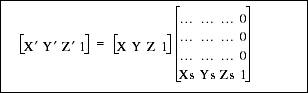
The utility method pfcTransform3D.Invert() inverts a transformation matrix so that it can be used to transform points in the opposite direction.
Web.Link provides two utilities for performing coordinate transformations. The method pfcTransform3D.TransformPoint() transforms a three-dimensional point and pfcTransform3D.TransformVector() transforms a three-dimensional vector.
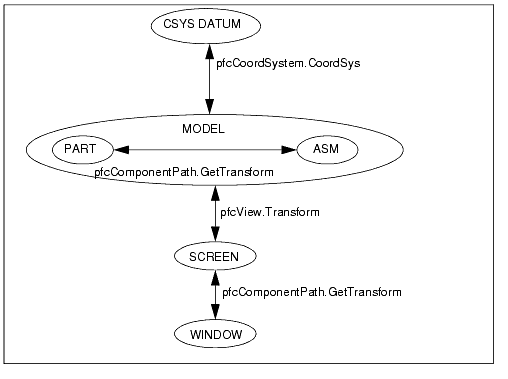
The following diagram summarizes the coordinate transformations needed when using Web.Link and specifies the Web.Link methods that provide the transformation matrix.
The method MpfcBase.MakeMatrixOrthonormal() converts a non-orthonormal matrix to an orthonormal matrix with the specified scaling factor. The input arguments follow:
| • | Matrix—The matrix to be converted to orthonormal. |
| • | Scale—Scale factor to be applied on the matrix. |
Transforming to Screen Coordinates
Methods and Properties Introduced:
| |
| |
| |
| |
| |
| |
The view matrix describes the transformation from solid to screen coordinates. The property pfcView.Transform provides the view matrix for a model in the view.
To get and set the transformation matrix for a model in the current view, use the methods pfcViewOwner.GetCurrentViewTransform() and pfcViewOwner.SetCurrentViewTransform().
The method pfcView.Rotate() rotates an object, relative to the X, Y, or Z axis for the specified rotation angle.
To rotate an object in the current view, use the method pfcViewOwner.CurrentViewRotate().
To transform from screen to solid coordinates, invert the transformation matrix using the method pfcTransform3D.Invert().
Transforming to Coordinate System Datum Coordinates
Transforming Window Coordinates
Properties Introduced
You can alter the pan and zoom of a window by using a Screen Transform object. This object contains three attributes. PanX
and PanY represent the horizontal and vertical movement. Every increment of 1.0 moves the view point one screen width or height.
Zoom represents a scaling factor for the view. This number must be greater than zero.