Features
All Creo Parametric solid models are made up of features. This section describes how to program on the feature level using Web.Link .
Access to Features
Methods and Properties Introduced:
  • pfcFeature.ListChildren()
  • pfcFeature.ListParents()
  • pfcFeatureGroup.GroupLeader
  • pfcFeatureGroup.GroupDirectHeader
  • pfcFeaturePattern.PatternLeader
  • pfcFeaturePattern.ListMembers()
  • pfcSolid.ListFailedFeatures()
  • pfcSolid.ListFeaturesByType()
  • pfcSolid.GetFeatureById()
  • pfcBaseSession.QueryFeatureEdit()
  • The methods pfcFeature.ListChildren() and pfcFeature.ListParents() return a sequence of features that contain all the children or parents of the specified feature.
    To get the first feature in the specified group access the property pfcFeatureGroup.GroupLeader.
    The property pfcFeatureGroup.GroupDirectHeader returns the direct header of the group.
    The property pfcFeaturePattern.PatternLeader and the method pfcFeaturePattern.ListMembers() return features that make up the specified feature pattern. See the section Feature Groups and Patterns for more information on feature patterns.
    The method pfcSolid.ListFailedFeatures() returns a sequence that contains all the features that failed regeneration.
    The method pfcSolid.ListFeaturesByType() returns a sequence of features contained in the model. You can specify which type of feature to collect by passing in one of the pfcFeatureType enumeration objects, or you can collect all features by passing void null as the type. If you list all features, the resulting sequence will include invisible features that Creo Parametric creates internally. Internal features are invisible features used internally for construction purposes. Use the method’s VisibleOnly argument to exclude them. If the argument VisibleOnly is True, the function lists the public features only. If the argument is False, the function lists both public and internal features.
    The method pfcSolid.GetFeatureById() returns the feature object with the corresponding integer identifier.
    A feature can be edited with the Edit Definition command in Creo Parametric. The method pfcBaseSession.QueryFeatureEdit() returns a list of all the features that are currently being edited by the Edit Definition command.
    Feature Information
    Properties Introduced:
  • pfcFeature.FeatType
  • pfcFeature.Status
  • pfcFeature.IsVisible
  • pfcFeature.IsReadonly
  • pfcFeature.IsEmbedded
  • pfcFeature.Number
  • pfcFeature.FeatTypeName
  • pfcFeature.FeatSubType
  • pfcRoundFeat.IsAutoRoundMember
  • The enumeration classes pfcFeatureType and pfcFeatureStatus provide information for a specified feature. The following properties specify this information:
    •  pfcFeature.FeatType—Returns the type of a feature.
    •  pfcFeature.Status—Returns whether the feature is suppressed, active, or failed regeneration.
    The other properties that gather feature information include the following:
    •  pfcFeature.IsVisible—Identifies whether the specified feature will be visible on the screen. The method distinguishes visible features from internal features. Internal features are invisible features used for construction purposes.
    •  pfcFeature.IsReadonly—Identifies whether the specified feature can be modified.
    •  pfcFeature.IsEmbedded—Specifies whether the specified feature is an embedded datum.
    •  pfcFeature.Number—Returns the feature regeneration number. This method returns void null if the feature is suppressed.
    The property pfcFeature.FeatTypeName returns a string representation of the feature type.
    The property pfcFeature.FeatSubType returns a string representation of the feature subtype, for example, "Extrude" for a protrusion feature.
    The property pfcRoundFeat.IsAutoRoundMember determines whether the specified round feature is a member of an Auto Round feature.
    Feature Operations
    Methods and Properties Introduced:
  • pfcSolid.ExecuteFeatureOps()
  • pfcFeature.CreateSuppressOp()
  • pfcSuppressOperation.Clip
  • pfcSuppressOperation.AllowGroupMembers
  • pfcSuppressOperation.AllowChildGroupMembers
  • pfcFeature.CreateDeleteOp()
  • pfcDeleteOperation.Clip
  • pfcDeleteOperation.AllowGroupMembers
  • pfcDeleteOperation.AllowChildGroupMembers
  • pfcDeleteOperation.KeepEmbeddedDatums
  • pfcFeature.CreateResumeOp()
  • pfcResumeOperation.WithParents
  • pfcFeature.CreateReorderBeforeOp()
  • pfcReorderBeforeOperation.BeforeFeat
  • pfcFeature.CreateReorderAfterOp()
  • pfcReorderAfterOperation.AfterFeat
  • The method pfcSolid.ExecuteFeatureOps() causes a sequence of feature operations to run in order. Feature operations include suppressing, resuming, reordering, and deleting features. The optional pfcRegenInstructions argument specifies whether the user will be allowed to fix the model if a regeneration failure occurs.
    Note
    Regenerating models in resolve_mode is not supported. As a result, the method pfcSolid.ExecuteFeatureOps() is not supported anymore.
    You can create an operation that will delete, suppress, reorder, or resume certain features using the methods in the class pfcFeature. Each created operation must be passed as a member of the pfcFeatureOperations object to the method pfcSolid.ExecuteFeatureOps().
    Some of the operations have specific options that you can modify to control the behavior of the operation:
    •  Clip—Specifies whether to delete or suppress all features after the selected feature. By default, this option is false.
    Use the properties pfcDeleteOperation.Clip and pfcSuppressOperation.Clip to modify this option.
    •  AllowGroupMembers—If this option is set to true and if the feature to be deleted or suppressed is a member of a group, then the feature will be deleted or suppressed out of the group. If this option is set to false, then the entire group containing the feature is deleted or suppressed. By default, this option is false. It can be set to true only if the option Clip is set to true.
    Use the properties pfcSuppressOperation.AllowGroupMembers and pfcDeleteOperation.AllowGroupMembers to modify this option.
    •  AllowChildGroupMembers—If this option is set to true and if the children of the feature to be deleted or suppressed are members of a group, then the children of the feature will be individually deleted or suppressed out of the group. If this option is set to false, then the entire group containing the feature and its children is deleted or suppressed. By default, this option is false. It can be set to true only if the options Clip and AllowGroupMembers are set to true.
    Use the properties pfcSuppressOperation.AllowChildGroupMembers and pfcDeleteOperation.AllowChildGroupMembers to modify this option.
    •  KeepEmbeddedDatums—Specifies whether to retain the embedded datums stored in a feature while deleting the feature. By default, this option is false.
    Use the property pfcDeleteOperation.KeepEmbeddedDatums to modify this option.
    •  WithParents—Specifies whether to resume the parents of the selected feature.
    Use the property pfcResumeOperation.WithParents to modify this option.
    •  BeforeFeat—Specifies the feature before which you want to reorder the features.
    Use the property pfcReorderBeforeOperation.BeforeFeat to modify this option.
    •  AfterFeat—Specifies the feature after which you want to reorder the features.
    Use the property pfcReorderAfterOperation.AfterFeat to modify this option.
    Feature Groups and Patterns
    Patterns are treated as features in Creo Parametric. A feature type, FEATTYPE_PATTERN_HEAD, is used for the pattern header feature.
    Note
    The pattern header feature is not treated as a leader or a member of the pattern by the methods described in the following section.
    Methods and Properties Introduced:
  • pfcFeature.Group
  • pfcFeature.Pattern
  • pfcFeature.GetPatternByType()
  • pfcFeature.PatternStatus
  • pfcFeature.GroupStatus
  • pfcFeature.GroupPatternStatus
  • pfcSolid.CreateLocalGroup()
  • pfcFeatureGroup.Pattern
  • pfcFeatureGroup.GroupLeader
  • pfcFeaturePattern.PatternLeader
  • pfcFeaturePattern.ListMembers()
  • pfcFeaturePattern.Delete()
  • The property pfcFeature.Group returns a handle to the local group that contains the specified feature.
    To get the first feature in the specified group call the property pfcFeatureGroup.GroupLeader.
    The property pfcFeatureGroup.Pattern and the method pfcFeaturePattern.ListMembers() return features that make up the specified feature pattern.
    A pattern is composed of a pattern header feature and a number of member features. You can pattern only a single feature. To pattern several features, create a local group and pattern this group.
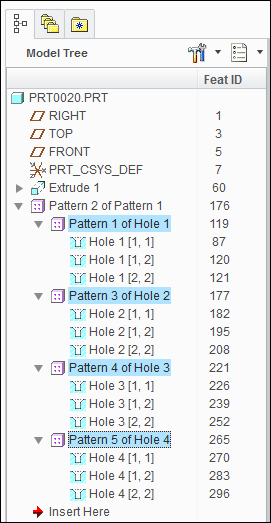
    You can also create a pattern of pattern. This creates a multiple level pattern. From Creo Parametric2.0 M170 onward, for a pattern of pattern, the method pfcFeaturePattern.ListMembers() returns all the pattern header features created at the first level.
    For example, consider a model where a pattern of pattern has been created. The model tree is as shown below:
    Image
    The method pfcFeaturePattern.ListMembers() returns the pattern header features with following IDs for a pattern of pattern:
    •  119
    •  177
    •  221
    •  265
    The properties pfcFeatureGroup.Pattern and pfcFeatureGroup.Pattern return the FeaturePattern object that contains the corresponding Feature or FeatureGroup. Use the method pfcSolid.CreateLocalGroup() to take a sequence of features and create a local group with the specified name. To delete a FeaturePattern object, call the method pfcFeaturePattern.Delete().
    The method pfcFeature.GetPatternByType() returns the pattern of the feature and is specified using the enumerated data type pfcPatternType. The valid values are:
    •  PATTERN_FEAT—Feature pattern.
    •  PATTERN_GROUP—Group pattern.
    The property pfcFeature.PatternStatus returns the pattern status of the feature and is specified using the enumerated data type pfcPatternStatus. The valid values are:
    •  GRP_PATTERN_NONE—Feature does not belong to any pattern.
    •  GRP_PATTERN_LEADER—Feature is leader of the pattern.
    •  GRP_PATTERN_MEMBER—Feature is member of the pattern.
    •  GRP_PATTERN_HEADER—Feature is header of the pattern.
    The property pfcFeature.GroupStatus returns the group status of the feature and is specified using the enumerated data type pfcupStatus. The valid values are:
    •  GROUP_NONE—Feature does not belong to any group.
    •  GROUP_MEMBER—Feature is member of the group.
    The property pfcFeature.GroupPatternStatus returns the group pattern status of the feature and is specified using the enumerated data type GroupPatternStatus. The valid values are:
    •  GRP_PATTERN_NONE—Feature does not belong to any group pattern.
    •  GRP_PATTERN_LEADER—Feature is leader of the group pattern.
    •  GRP_PATTERN_MEMBER—Feature is member of the group pattern.
    •  GRP_PATTERN_HEADER—Feature is header of the group pattern.
    Feature Groups
    Feature groups have a group header feature, which shows up in the model information and feature list for the model. This feature will be inserted in the regeneration list to a position just before the first feature in the group.
    The results of the header feature are as follows:
    •  Models that contain groups will get one extra feature in the regeneration list, of type FEATTYPE_GROUP_HEAD of the enumerated data typepfcFeatureType. This affects the feature numbers of all subsequent features, including those in the group.
    •  Each group automatically contains the header feature in the list of features returned from pfcFeaturePattern.ListMembers().
    •  Each group automatically gets the group head feature a s the leader. This is returned from pfcFeatureGroup.GroupLeader.
    •  Each group pattern contains a series of groups, and each group in the pattern will be similarly constructed.
    User Defined Features
    Groups in Creo Parametric represent sets of contiguous features that act as a single feature for specific operations. Individual features are affected by most operations while some operations apply to an entire group:
    •  Suppress
    •  Delete
    •  Layers
    •  Patterning
    User defined Features (UDFs) are groups of features that are stored in a file. When a UDF is placed in a new model the created features are automatically assigned to a group. A local group is a set of features that have been specifically assigned to a group to make modifications and patterning easier.
    Note
    All methods in this section can be used for UDFs and local groups.
    Read Access to Groups and User Defined Features
    Methods and Properties Introduced:
  • pfcFeatureGroup.UDFName
  • pfcFeatureGroup.UDFInstanceName
  • pfcFeatureGroup.ListUDFDimensions()
  • pfcUDFDimension.UDFDimensionName
  • User defined features (UDF’s) are groups of features that can be stored in a file and added to a new model. A local group is similar to a UDF except it is available only in the model in which is was created.
    The property pfcFeatureGroup.UDFName provides the name of the group for the specified group instance. A particular group definition can be used more than once in a particular model.
    If the group is a family table instance, the property pfcFeatureGroup.UDFInstanceName supplies the instance name.
    The method pfcFeatureGroup.ListUDFDimensions() traverses the dimensions that belong to the UDF. These dimensions correspond to the dimensions specified as variables when the UDF was created. Dimensions of the original features that were not variables in the UDF are not included unless the UDF was placed using the Independent option.
    The property pfcUDFDimension.UDFDimensionName provides access to the dimension name specified when the UDF was created, and not the name of the dimension in the current model. This name is required to place the UDF programmatically using the method pfcSolid.CreateUDFGroup().
    Creating Features from UDFs
    Method Introduced:
  • pfcSolid.CreateUDFGroup()
  • The method pfcSolid.CreateUDFGroup() is used to create new features by retrieving and applying the contents of an existing UDF file. It is equivalent to the Creo Parametric command Feature, Create, User Defined.
    To understand the following explanation of this method, you must have a good knowledge and understanding of the use of UDF’s in Creo Parametric. PTC recommends that you read about UDF’s in the Creo Parametric help, and practice defining and using UDF’s in Creo Parametric before you attempt to use this method.
    When you create a UDF interactively, Creo Parametric prompts you for the information it needs to fix the properties of the resulting features. When you create a UDF from Web.Link, you can provide some or all of this information programmatically by filling several compact data classes that are inputs to the method pfcSolid.CreateUDFGroup().
    During the call to pfcSolid.CreateUDFGroup(), Creo Parametric prompts you for the following:
    •  Information required by the UDF that was not provided in the input data structures.
    •  Correct information to replace erroneous information
    Such prompts are a useful way of diagnosing errors when you develop your application. This also means that, in addition to creating UDF’s programmatically to provide automatic synthesis of model geometry, you can also use pfcSolid.CreateUDFGroup() to create UDF’s semi-interactively. This can simplify the interactions needed to place a complex UDF making it easier for the user and less prone to error.
    Creating UDFs
    Creating a UDF requires the following information:
    •  Name—The name of the UDF you are creating and the instance name if applicable.
    •  Dependency—Specify if the UDF is independent of the UDF definition or is modified by the changers made to it.
    •  Scale—How to scale the UDF relative to the placement model.
    •  Variable Dimension—The new values of the variables dimensions and pattern parameters, those whose values can be modified each time the UDF is created.
    •  Dimension Display—Whether to show or blank non-variable dimensions created within the UDF group.
    •  References—The geometrical elements that the UDF needs in order to relate the features it contains to the existing models features. The elements correspond to the picks that Creo Parametric prompts you for when you create a UDF interactively using the prompts defined when the UDF was created. You cannot select an embedded datum as the UDF reference.
    •  Parts Intersection—When a UDF that is being created in an assembly contains features that modify the existing geometry you must define which parts are affected or intersected. You also need to know at what level in an assembly each intersection is going to be visible.
    •  Orientations—When a UDF contains a feature with a direction that is defined in respect to a datum plane Creo Parametric must know what direction the new feature will point to. When you create such a UDF interactively Creo Parametric prompt you for this information with a flip arrow.
    •  Quadrants—When a UDF contains a linearly placed feature that references two datum planes to define it’s location in the new model Creo Parametric prompts you to pick the location of the new feature. This is determined by which side of each datum plane the feature must lie. This selection is referred to as the quadrant because the are four possible combinations for each linearly place feature.
    To pass all the above values to Creo Parametric, Web.Link uses a special class that prepares and sets all the options and passes them to Creo Parametric.
    Creating Interactively Defined UDFs
    Method Introduced:
  • pfcUDFPromptCreateInstructions.Create()
  • This static method is used to create an instructions object that can be used to prompt a user for the required values that will create a UDF interactively.
    Creating a Custom UDF
    Method Introduced:
  • pfcUDFCustomCreateInstructions.Create()
  • This method creates a pfcUDFCustomCreateInstructions object with a specified name. To set the UDF creation parameters programmatically you must modify this object as described below. The members of this class relate closely to the prompts Creo Parametric gives you when you create a UDF interactively. PTC recommends that you experiment with creating the UDF interactively using Creo Parametric before you write the Web.Link code to fill the structure.
    Setting the Family Table Instance Name
    Property Introduced:
  • pfcUDFCustomCreateInstructions.InstanceName
  • If the UDF contains a family table, this field can be used to select the instance in the table. If the UDF does not contain a family table, or if the generic instance is to be selected, the do not set the string.
    Setting Dependency Type
    Property Introduced:
  • pfcUDFCustomCreateInstructions.DependencyType
  • The pfcUDFDependencyType object represents the dependency type of the UDF. The choices correspond to the choices available when you create a UDF interactively. This enumerated type takes the following values:
    •  UDFDEP_INDEPENDENT
    •  UDFDEP_DRIVEN
    Note
    UDFDEP_INDEPENDENT is the default value, if this option is not set.
    Setting Scale and Scale Type
    Properties Introduced:
  • pfcUDFCustomCreateInstructions.ScaleType
  • pfcUDFCustomCreateInstructions.Scale
  • The property ScaleType specifies the length units of the UDF in the form of the pfcUDFScaleType object. This enumerated type takes the following values:
    •  UDFSCALE_SAME_SIZE
    •  UDFSCALE_SAME_DIMS
    •  UDFSCALE_CUSTOM
    •  UDFSCALE_nil
    Note
    The default value is UDFSCALE_SAME_SIZE if this option is not set.
    The propertyScale specifies the scale factor. If the ScaleType is set to UDFSCALE_CUSTOM, the property Scale assigns the user defined scale factor. Otherwise, this attribute is ignored.
    Setting the Appearance of the Non UDF Dimensions
    Properties Introduced:
  • pfcUDFCustomCreateInstructions.DimDisplayType
  • The pfcUDFDimensionDisplayType object sets the options in Creo Parametric for determining the appearance in the model of UDF dimensions and pattern parameters that were not variable in the UDF, and therefore cannot be modified in the model. This enumerated type takes the following values:
    •  UDFDISPLAY_NORMAL
    •  UDFDISPLAY_READ_ONLY
    •  UDFDISPLAY_BLANK
    Note
    The default value is UDFDISPLAY_NORMAL if this option is not set.
    Setting the Variable Dimensions and Parameters
    Methods and Properties Introduced:
  • pfcUDFCustomCreateInstructions.VariantValues
  • pfcUDFVariantDimension.Create()
  • pfcUDFVariantPatternParam.Create()
  • pfcUDFVariantValues class represents an array of variable dimensions and pattern parameters.
    pfcUDFVariantDimension.Create() is a static method creating a pfcUDFVariantDimension. It accepts the following parameters:
    •  Name—The symbol that the dimension had when the UDF was originally defined not the prompt that the UDF uses when it is created interactively. To make this name easy to remember, before you define the UDF that you plan to create with the Web.Link, you should modify the symbols of all the dimensions that you want to select to be variable. If you get the name wrong, pfcSolid.CreateUDFGroup() will not recognize the dimension and prompts the user for the value in the usual way does not modify the value.
    •  DimensionValue—The new value.
    If you do not remember the name, you can find it by creating the UDF interactively in a test model, then using the pfcFeatureGroup.ListUDFDimensions() and pfcUDFDimension.UDFDimensionName to find out the name.
    pfcUDFVariantPatternParam.Create() is a static method which creates a pfcUDFVariantPatternParam. It accepts the following parameters:
    •  name—The string name that the pattern parameter had when the UDF was originally defined
    •  number—The new value.
    After the pfcUDFVariantValues object has been compiled, use pfcUDFCustomCreateInstructions.VariantValues to add the variable dimensions and parameters to the instructions.
    Setting the User Defined References
    Methods and Properties Introduced:
  • pfcUDFReference.Create()
  • pfcUDFReference.IsExternal
  • pfcUDFReference.ReferenceItem
  • pfcUDFCustomCreateInstructions.References
  • The method pfcUDFReference.Create() is a static method creating a pfcUDFReference object. It accepts the following parameters:
    •  PromptForReference—The prompt defined for this reference when the UDF was originally set up. It indicates which reference this structure is providing. If you get the prompt wrong, pfcSolid.CreateUDFGroup() will not recognize it and prompts the user for the reference in the usual way.
    •  ReferenceItem—Specifies the pfcSelection object representing the referenced element. You can set pfcSelection programmatically or prompt the user for a selection separately. You cannot set an embedded datum as the UDF refereence.
    There are two types of reference:
      Internal—The referenced element belongs directly to the model that will contain the UDF. For an assembly, this means that the element belongs to the top level.
      External—The referenced element belongs to an assembly member other than the placement member.
    To set the reference type, use the property pfcUDFReference.IsExternal.
    To set the item to be used for reference, use the property pfcUDFReference.ReferenceItem.
    After the pfcUDFReferences object has been set, use pfcUDFCustomCreateInstructions.References to add the program-defined references.
    Setting the Assembly Intersections
    Methods and Properties Introduced:
  • pfcUDFAssemblyIntersection.Create()
  • pfcUDFAssemblyIntersection.InstanceNames
  • pfcUDFCustomCreateInstructions.Intersections
  • pfcUDFAssemblyIntersection.Create() is a static method creating a pfcUDFReference object. It accepts the following parameters:
    •  ComponentPath—Is an intseq type object representing the component path of the part to be intersected.
    •  Visibility level—The number that corresponds to the visibility level of the intersected part in the assembly. If the number is equal to the length of the component path the feature is visible in the part that it intersects. If Visibility level is 0, the feature is visible at the level of the assembly containing the UDF.
    pfcUDFAssemblyIntersection.InstanceNames sets an array of names for the new instances of parts created to represent the intersection geometry. This property accepts the following parameters:
    •  instance names—is a com.ptc.cipjava.stringseq type object representing the array of new instance names.
    After the pfcUDFAssemblyIntersections object has been set, use pfcUDFCustomCreateInstructions.Intersections to add the assembly intersections.
    Setting Orientations
    Properties Introduced:
  • pfcUDFCustomCreateInstructions.Orientations
  • pfcUDFOrientations class represents an array of orientations that provide the answers to Creo Parametric prompts that use a flip arrow. Each term is a pfcUDFOrientation object that takes the following values:
    •  UDFORIENT_INTERACTIVE—Prompt for the orientation using a flip arrow.
    •  UDFORIENT_NO_FLIP—Accept the default flip orientation.
    •  UDFORIENT_FLIP—Invert the orientation from the default orientation.
    The order of orientations should correspond to the order in which Creo Parametric prompts for them when the UDF is created interactively. If you do not provide an orientation that Creo Parametric needs, it uses the default value NO_FLIP.
    After the pfcUDFOrientations object has been set use pfcUDFCustomCreateInstructions.Orientations to add the orientations.
    Setting Quadrants
    Property Introduced:
  • pfcUDFCustomCreateInstructions.Quadrants
  • The property pfcUDFCustomCreateInstructions.Quadrants sets an array of points, which provide the X, Y, and Z coordinates that correspond to the picks answering the Creo Parametric prompts for the feature positions. The order of quadrants should correspond to the order in which Creo Parametric prompts for them when the UDF is created interactively.
    Setting the External References
    Property Introduced:
  • pfcUDFCustomCreateInstructions.ExtReferences
  • The property pfcUDFCustomCreateInstructions.ExtReferences sets an external reference assembly to be used when placing the UDF. This will be required when placing the UDF in the component using references outside of that component. References could be to the top level assembly of another component.
    Example Code 1
    The sample code in the file pfcUDFCreateExamples.js located at <creo_weblink_loadpoint>/weblinkexamples/jscript copies of a node UDF at a particular coordinate system location in a part. The node UDF is a spherical cut centered at the coordinate system whose diameter is driven by the 'diam' argument to the method..