Security on Windows
Operations performed using Web.Link in the embedded browser can read and write information in the Creo Parametric session and from the local disk. Because of this, Web.Link in Creo Parametric uses three levels of security:
| • | Web.Link code only functions in web pages loaded into the Creo Parametric embedded browser. Pages containing Web.Link code will not work if the user browses to them using external web browsers. |
| • | Web.Link is disabled by default using a Creo Parametric configuration option. |
| • | The Web.Link ActiveX control has been created as not safe for scripting. This requires that security settings be enabled in Internet Explorer,
allowing only certain sites access to the Web.Link methods and objects.
Note
The support of Web.Link for the Chromium browser is not based on ActiveX technology. Therefore, the section on browser security and security settings
are applicable only to the Internet Explorer.
|
Enabling Web.Link
The configuration option web_enable_javascript controls whether the Creo Parametric session is able to load the ActiveX control. Set web_enable_javascript to ON to enable Web.Link, and set it to OFF to disable it. The default value for the Creo Parametric session is OFF. If Web.Link applications are loaded into the embedded browser with the configuration option turned off, the applications will throw a
pfcXNotConnectedToProE exception.
Setting Up Browser Security
Follow the procedure below to change the security settings:
| 1. | In Internet Explorer, select . Click the Security tab as shown in the following figure.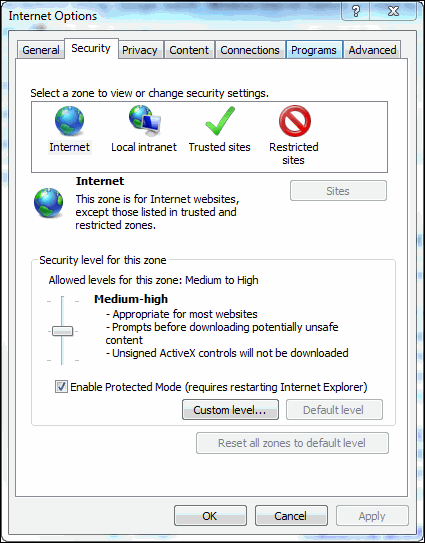 |
| 2. | Select a zone for which you want to change security settings. |
| 3. | Click Custom Level…. |
| 4. | Change the setting for Initialize and Script ActiveX controls not marked as safe under ActiveX controls and plugins to Enable, as shown in the following figure.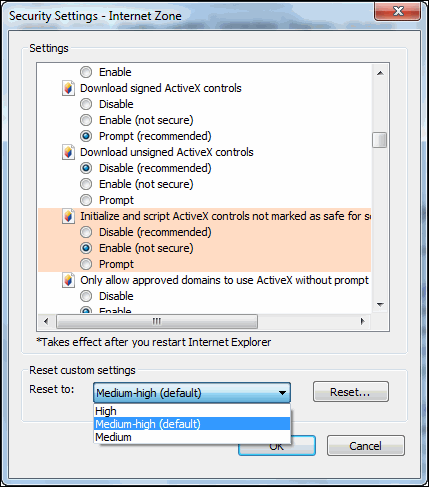 |
| 5. | Change the setting for Active Scripting under Scripting to Enable as shown in the following figure.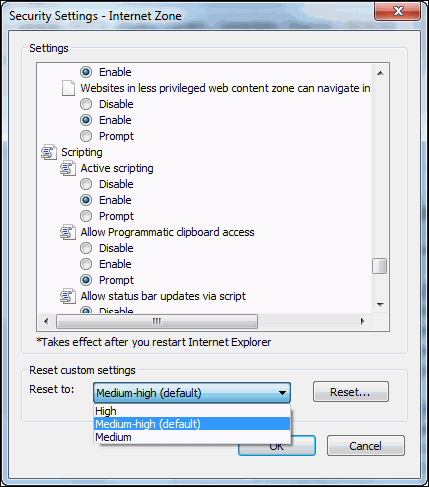 |
Add and Remove Sites to Security Zones
Follow the procedure below to add sites to the security zones:
| 1. | In Internet Explorer, select . |
| 2. | Click the Security tab. |
| 3. | Select the security zone to which you want to add sites. |
| 4. | Click Sites…. |
| 5. | Click Advanced…, this option is available only for the local intranet. |
| 6. | Enter the name of site. |
| 7. | Click Add. |
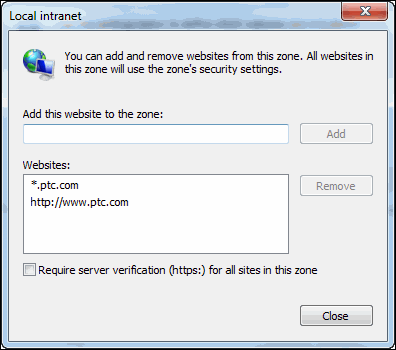
The site is added to the security zone as shown in the figure below:
Enabling Security Settings
To run Web.Link in the embedded browser security set the following in Microsoft Internet Explorer:
| • | Allow scripting of ActiveX controls not marked as safe |
| • | Allow active scripting |
These security features can be set to the following values:
| • | Disable—The activity is not permitted. Attempting to load a Web.Link page will result in the following exception:"Automation server can’t create object" |
| • | Prompt—Each time the browser loads a web page that tries to access Web.Link methods and objects, you are prompted to allow the interaction activity as shown in the following figure.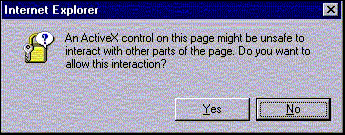 |
| • | Enable—The interaction activity is always permitted |
Script security can be independently assigned to four domains:
| • | Intranet—The organization’s local intranet, including all access via file:// URLs and selected internal web servers. |
| • | Trusted sites—Web sites designated as trusted. |
| • | Restricted sites—Web sites designated as untrusted. |
| • | Internet—All other sites accessed via the Internet. |